Wednesday, May 30, 2012

Technology Showcase

Here is the video from the Technology Showcase Tech Tuesdays Class.

The iPad was the hit of the class, but we also have a Nook, Fujitsu 6470, Lenovo X220 Tablet with a touch screen and the LT1421 14" monitor from Lenovo. In the Thursday class there will also be an MacBook Pro.

As always, thanks for coming to the classes, hope to see you at future Tech Tuesdays!

Friday, May 25, 2012

Making sure deleted data is deleted

When you delete a file on a Windows based computer, or even if you format the computer, the files aren't really gone. What windows does is take off the label or 'header' of the file to let Windows know it can use the space for something else.
That is why in many cases you can get files out of your recycling bin, or you can buy a program that recovers deleted files. The information is still there, now the label, or nametag is gone. If you want to really delete a file, you need a program that deletes files entirely. There is a method for this kind deletion and it is the Department of Defense standard.

When you delete your internet browsing files, and when you delete those old and fuzzy pictures that aren't quite in focus, they're not really gone. Yes, even some files that might not exactly be appropriate. If you're not worried about what you do on the computer, who else has access to your computer? You may not do anything inappropriate on your computer, but a family member, coworker, friend or neighbor might.

When you delete something, you typically want it to be gone forever. Enter the program that I seem to be using more and more for whatever ails my computer, Ccleaner. There is an option in Ccleaner called 'Wipe Free Space'. When you run Ccleaner it warns you that if you check this option, it can take considerably longer to 'clean' your system. It is worth the extra time in my opinion. Below is a screenshot of the option grayed out at the bottom.

You can change the settings Ccleaner to wipe the free space on your system to run 1, 3, 7, or even 35 passes on your free space. The highest setting can take a considerable amount a time run, so be warned.


You files should definately be deleted after you run it this way.

If you are going to sell your computer, or sell a hard drive on Ebay or even give away your computer, I would recommend using a utility that will wipe the entire drive. There are many utilities that will do this, but use Active @ KillDisk. It is easy and quick to use. It is not hard to configure and this should take care of your files from the most curious of people besides law enforcement.

There are many ways to make sure a drive and it's files is unrecoverable. One that almost everyone has access to, and is 100% reliable is the hammer!

Just simply smash the hard drive till you hear the platters inside the drive shatter. I recommend you where saftey goggles and follow all safety procedures while using the hammer. Also, I personally use the claw end of the hammer, it seems to get the job done quicker. 

Friday, May 4, 2012

Social Networking, Facebook and your Privacy

I'm a firm believer in not redoing someone else's hard work. Consumer Reports has put up a great video on Facebook about guarding your privacy.

Propspective employers, lawyers in custody hearings and divorce proceedings are using what you do and say online in hiring decisions and in court. In article after article there are more cases of people losing out on a job opportunity, or even losing benefits or disability payments because pictures posted on Facebook.

While I am not so much worried about people getting away with duping their spouses, employers or the government, there is also the worry about having your identity stolen on some social media site. Also, there is the safety of children and child abduction cases to worry about. This is a real threat and needs to be taken seriously.

So below is a great video about Facebook privacy that you should watch and take the needed steps to protect your online identity.


When in doubt, don't post something online. There is a saying that goes 'once on the Internet, forever on the Internet'; You can't get it back.

Tuesday, April 24, 2012

PC Tune Up and Clean Up


Tech Tuesdays PC Tune Up and Clean Up Class


Steps for Tuning Up your PC.

1.     In Programs and Features (Windows 7) or Add Remove Programs (Windows XP). Uninstall any programs that you no longer use. If you are in doubt about a program you can search for the program on the Internet. If you are still in doubt, leave it alone.
           
2.     Install and run CCleaner. Clean your system using the default settings. If you want to get a more in-depth cleaning, you can change some of the options.

3.     Next, Run the Registry cleaner from within CCleaner and remove clean all entries it finds.

4.     You may now want to go into Tools/startup on CCleaner. In here, only disable DO NOT DELETE any entries. If you make a mistake and remove something you need, you can go back later and enable it.

5.     Now open and run Disk Cleanup. This program comes with every Windows system. Start/Programs/Accessories/System Tools in Windows XP and Start/All Programs/Accessories/System Tools and then select the options you wish to clean, and remember to clean the ‘system restore’ files under the ‘More Options’ tab if you feel you no longer need them. Click ‘OK’ to clean the files and remember when it is finished, there is the ‘Poof’ factor, meaning it won’t tell you when it is done, it will just disappear from your screen.

6.     If you’ve made it this far, it is time to run Disk Defragmenter. You can find Disk Defragmenter in the same location as Disk Clean up above. Highlight the drives you want to Defragment and click ‘Defragment Disk’. When it is done, it won’t disappear from your screen, but it won’t say ‘I’m finished’. Microsoft assumes a lot.

In Conclusion, if you your computer is running slow and you remove unwanted Programs and Files, and then Defragment your drive you should see a performance increase.

If you still do not see improvement, you may have malware/virus infection, or it may be hardware related, meaning you need a RAM or Hard drive upgrade. A full hard drive performs slowly.


Physical Cleaning or your computer

1.     With a Desktop Computer, use a can of compressed air outside on a clear day. Open the case side door, and remember you may have to take off the front cover. Blow out as much dust as you can. Blow out the power supply, processor fan, and any other fans and vents you find.

2.     With a Laptop Computer, use a can of compressed air on the bottom of the laptop and keyboard only. Do not spray on or at the display. You can cause dust particles to actually get behind the screen.

3.     For LCD screens, laptop screens and tablet screens I recommend a micro fiber cloth. You can get them at Staples, Wal-Mart or almost any store. Micro-fiber cloth will protect your screen against scratches. If your screen is extremely dirty, micro-fiber clothe with a little screen cleaner will work wonders.

4.     For CRT Screens and the outside of desktop computers I recommend Windex. Windex can be harsh on newer screens, but if you have an old CRT (big and fat) monitor, Windex will work on that and on the outside of most desktop cases.
     
Remember you can get files like CCleaner and Defraggler at the following URL

      http://www.filehippo.com/

     Below is the Audio and PowerPoints from the Class.

Tuesday, March 20, 2012

February 21st Tech Tuesday on E-mail and E-mail Archive

Below is the recording of the E-mail Archive class held on Tuesday February 21st.

You can watch it here in it's entirety until it is moved internally.

Here is the link to the Training and Development site on inside. You can only reach these links if you are at work, or are behind the VPN. You will find Videos and files to help you with Microsoft Office as well as E1 and Datawarehouse.
http://inside/sites/ts/cso/CSOTraining/default.aspx

Monday, March 19, 2012

Tech Tuesdays Computer Security


The 'Handouts' referenced in this video are in this posting below. The first page of the handouts were the links below, and the second page are the tips on staying safe on the Internet.


Free Security Software

Microsoft Security Essentials
http://windows.microsoft.com/mse

AVG Anti-Virus Free Edition 2012
http://free.avg.com/us-en/download-free-all-product

Avast
http://www.avast.com/free-antivirus-download

Avira Free Antivirus
http://www.avira.com/en/avira-free-antivirus

Malwarebytes Anti-Malware Free Edition
http://www.malwarebytes.org/products/malwarebytes_free

Spybot Search and Destroy
http://www.safer-networking.org/en/download/index.html

Ad-aware
http://www.lavasoft.com/products/ad_aware_free.php

Windows Defender
http://www.microsoft.com/download/en/details.aspx?id=17

Windows Firewall (More than you want to know)
http://technet.microsoft.com/en-us/network/bb545423


Safe Software Sites – for utilities for your computer
http://download.cnet.com/windows/

http://www.filehippo.com/

Online Virus Scannershttp://housecall.trendmicro.com/

http://www.bitdefender.com/scanner/online/free.html


Being safe on the Internet

1. Do not give out personal information on the Internet such as Full name, address, where you work etc.
2. Never give out social security numbers or bank account numbers. EVER!
3. Do not open e-mail attachments from strangers.
4. Look out for ‘spoof’ e-mails. E-mails from Youtube, Ebay, USBank, PayPal, that don’t look legitimate. Don’t click on links from these e-mails. Type the URL in by hand.
5. Never meet someone in a private place you have only met online.
6. Make sure your computer is up-to-date
7. Make sure your anti-virus and other programs are installed and up-to-date
8. Change your passwords at a set time every year. For instance change them the time changes twice a year when you change your fire alarm batteries.
9. Watch what your kids are doing online.
10. Don’t just click ‘Next’. Read the page, and see what’s happening.
11. Read the agreements when installing software or signing up for a service.

Thursday, January 5, 2012

Disk Space Cleanup in Windows XP

Part I Disk Cleanup

Close all programs that are open, and also, turn off your screen saver if it is on.
If you are using a laptop or tablet Make sure your laptop’s AC adapter is plugged in.

Click Start / Programs / Accessories / System Tools /and then Disk Cleanup.

Disk Cleanup will come up with a box like this.

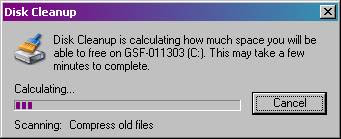
Click Ok. You will then see a screen like this.


This screen may not change for a while. Eventually will then see the following screen.


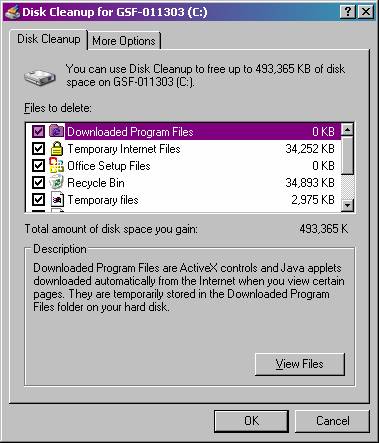
Use the scroll bar and make sure you put a check mark in all the desired boxes. I personally select them all.
Then Click OK. You will then see this.

Click Yes. After that you will see a screen similar to this.


This screen will be up for a long time. This is the point you want to walk away and let it run. When it is completed, it will just disappear off your screen. If using a laptop, make sure your laptop will not go to sleep during the disk cleanup or defragmentation below.


Part II Defragmentation

To perform a defrag of your hard drive, Close all programs that are open, and also, turn off your screen saver if it is on. Make sure your laptop’s AC adapter is plugged in.

Click Start / Programs / Accessories / System Tools /and then Disk Defragmenter.


Choose your C:\ Drive and click the Defragment Button.
Walk away, because this will take a long time. After it is done, you’ll see a box pop up asking you to close or view log. Just close the program.
This completes the disk cleanup and defragmentation for Windows XP and older.